
Introduction
1. How to install
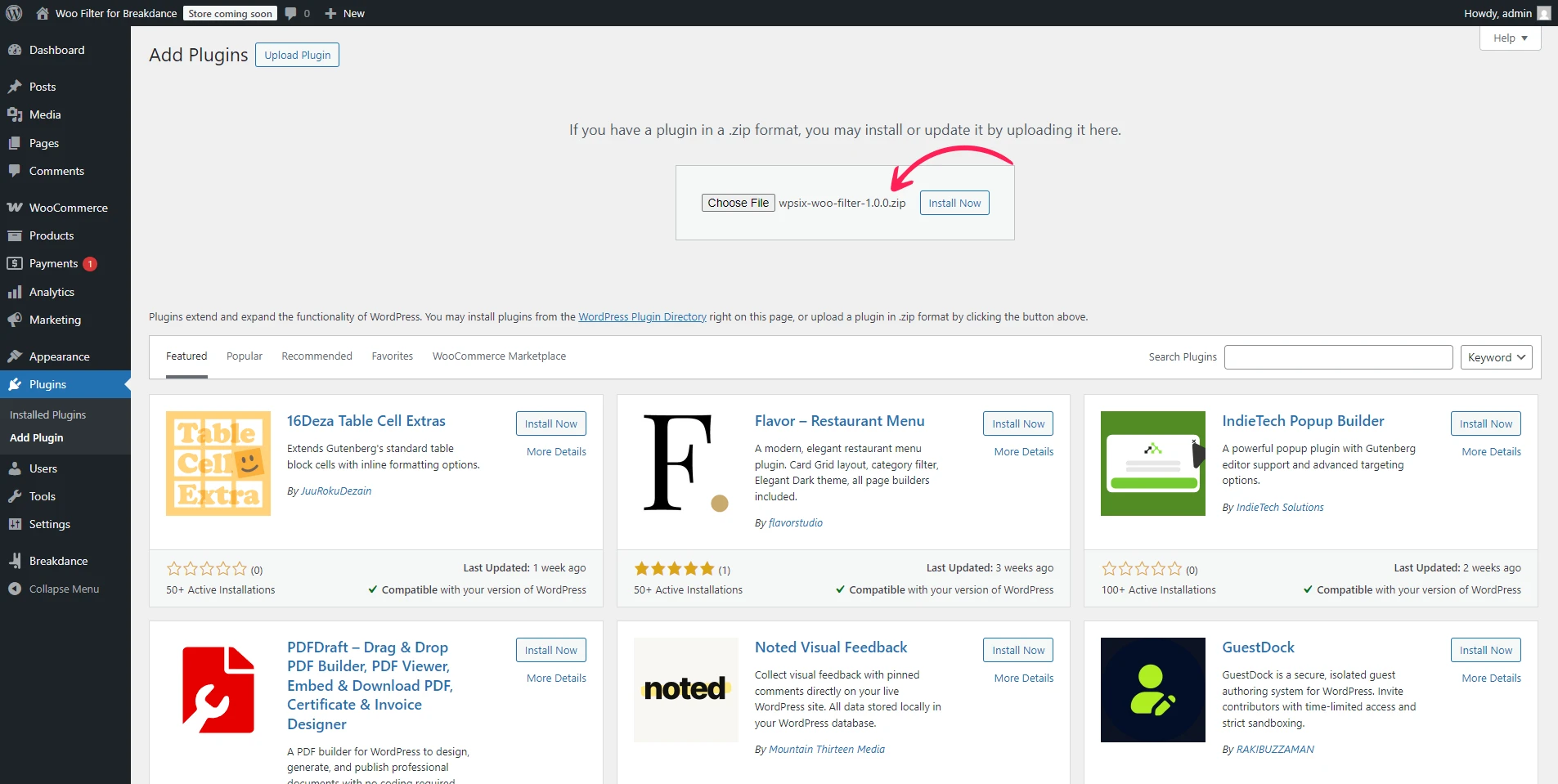
After purchasing the plugin from the Gumroad page, simply download the wpsix-woo-filter.zip file. You can do this easily by logging in with the email address you used for the purchase, or by creating a new account with that email if you don’t have one yet.
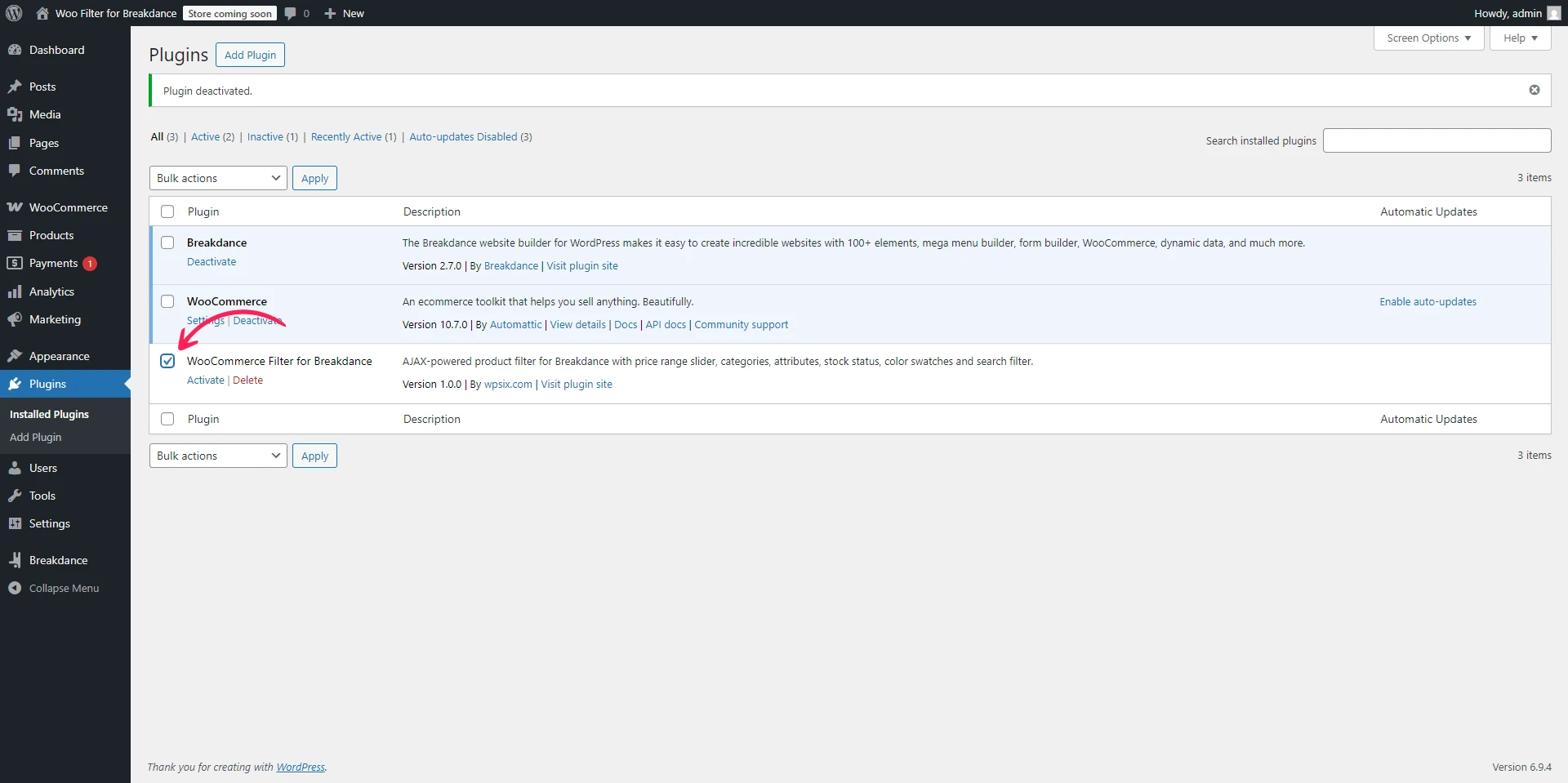
- After successfully downloading the ZIP file, upload it in the WordPress admin area under the Plugins menu and activate it.
2. How to add filter in Breakdance
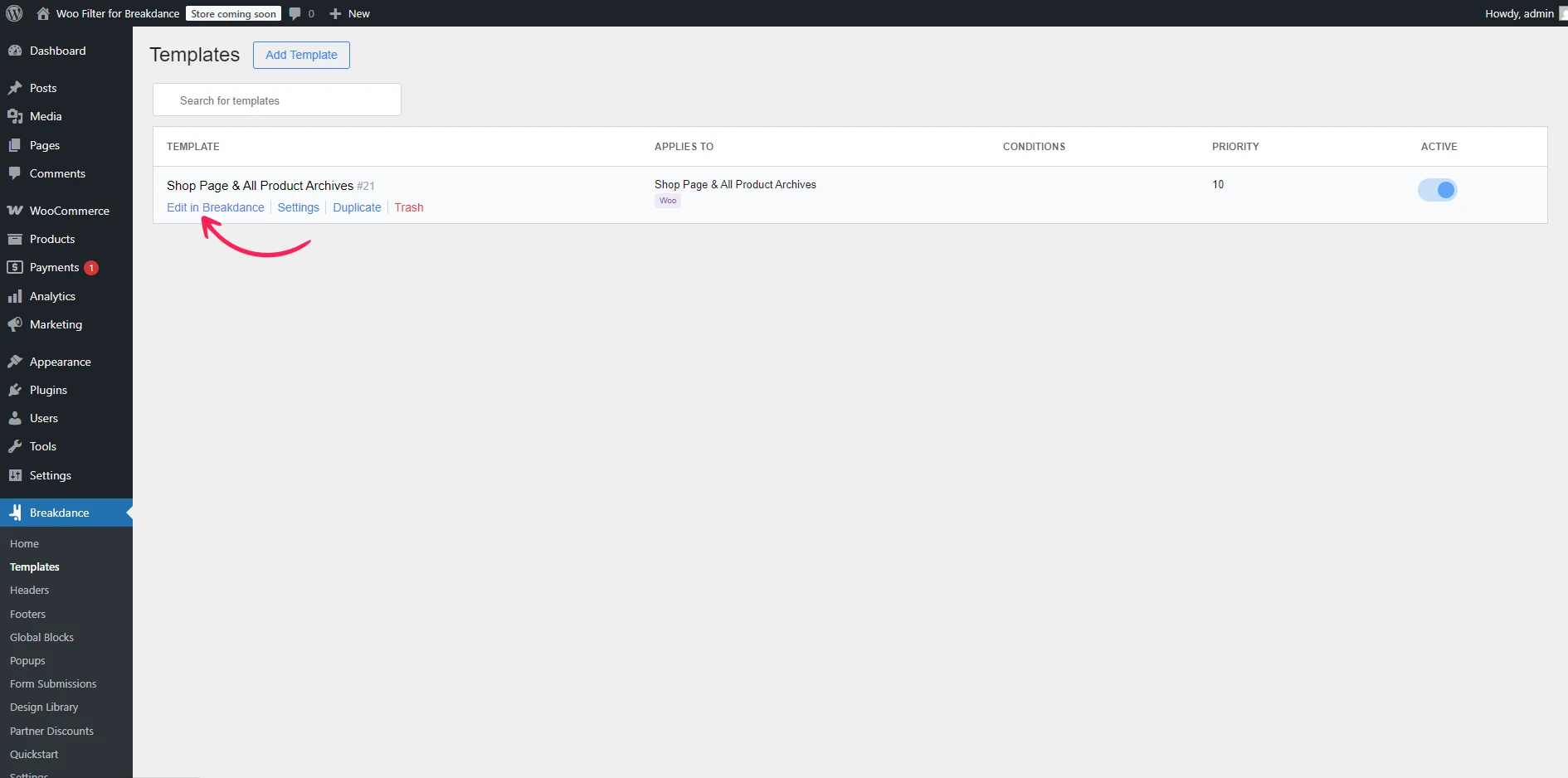
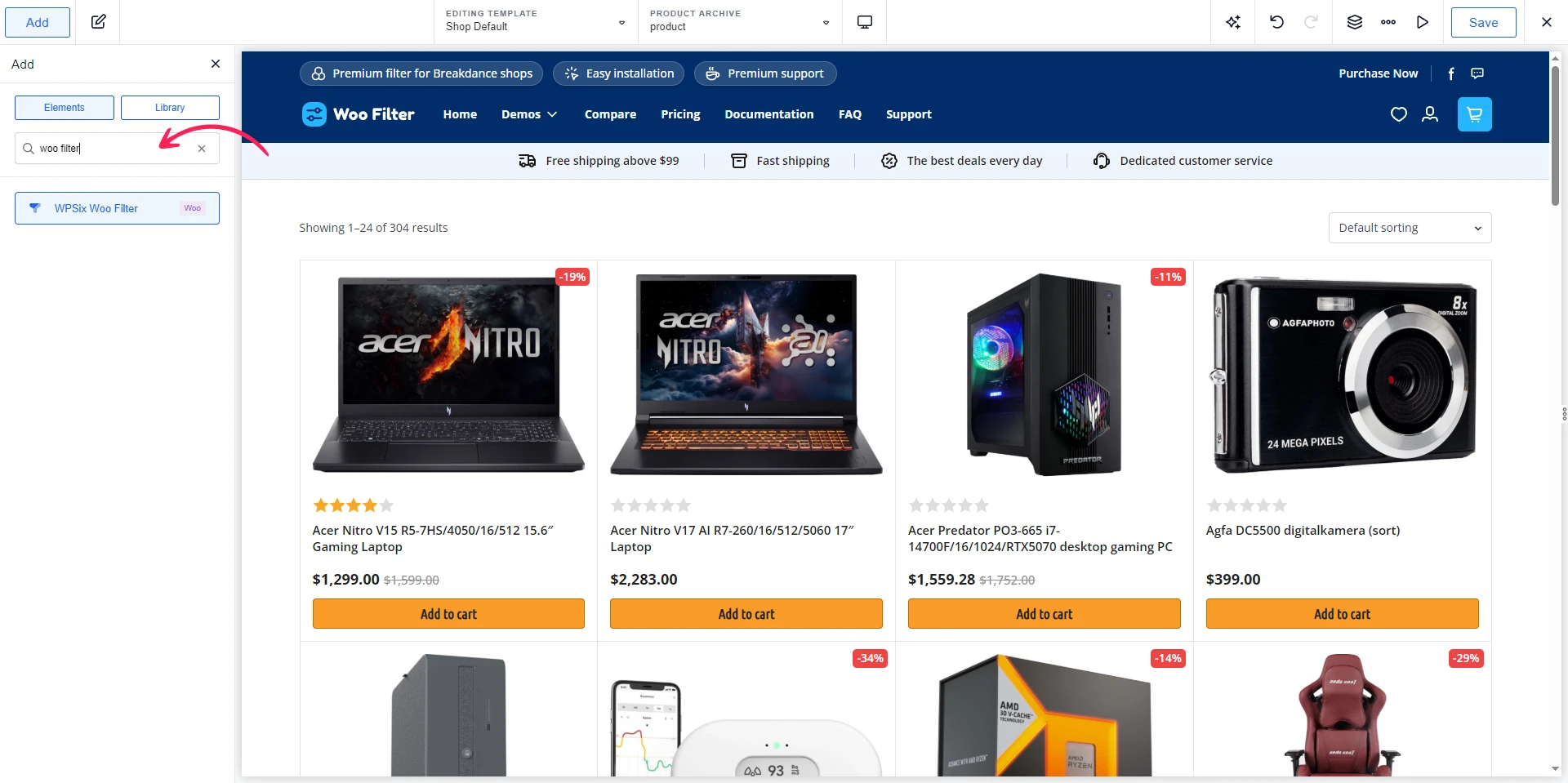
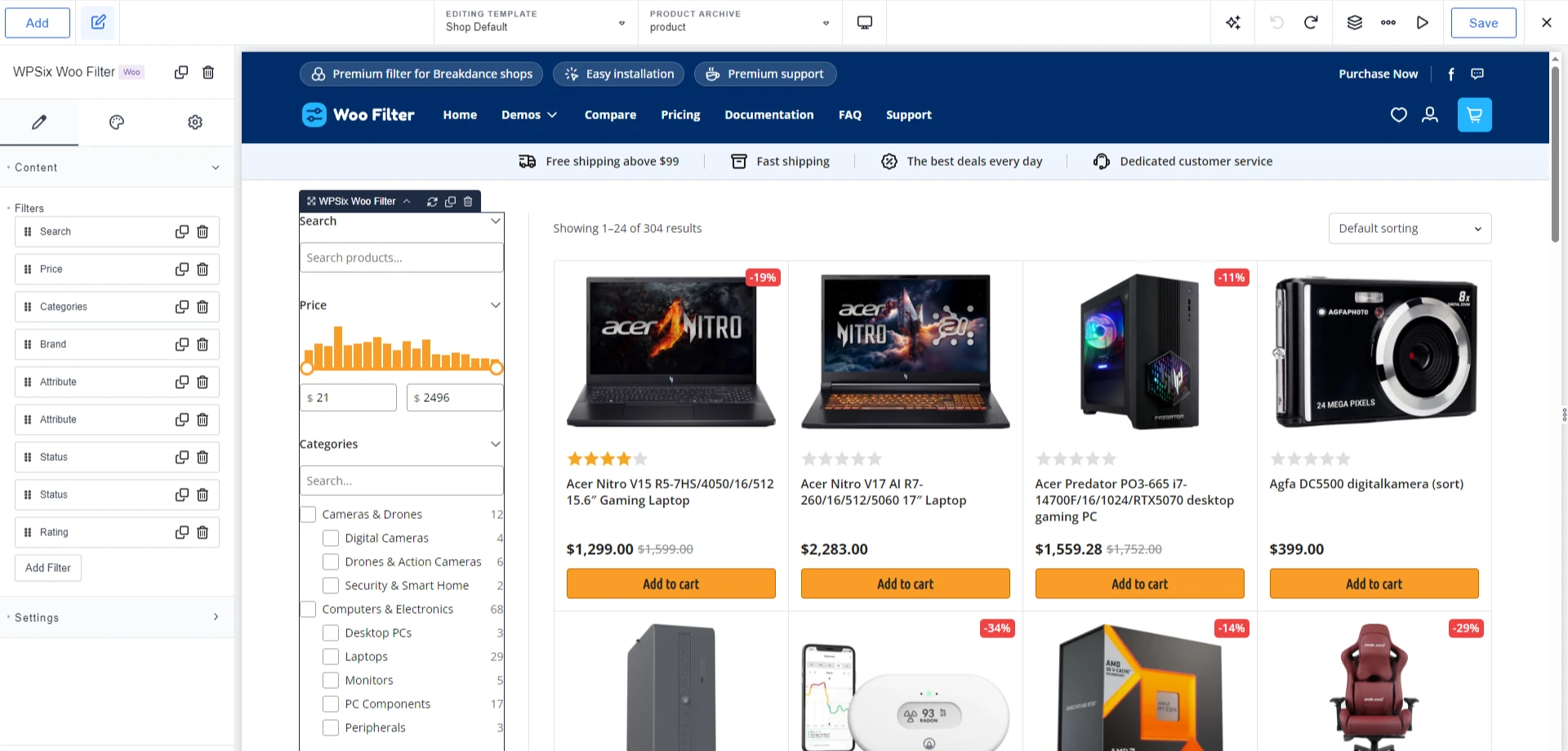
After activating the plugin, the filter element will become available in Breakdance. Go to the Breakdance Templates section and, on the archive page, add the WPSix Woo Filter element. That’s it — you can now customize it as needed.
3. How to add color swatches
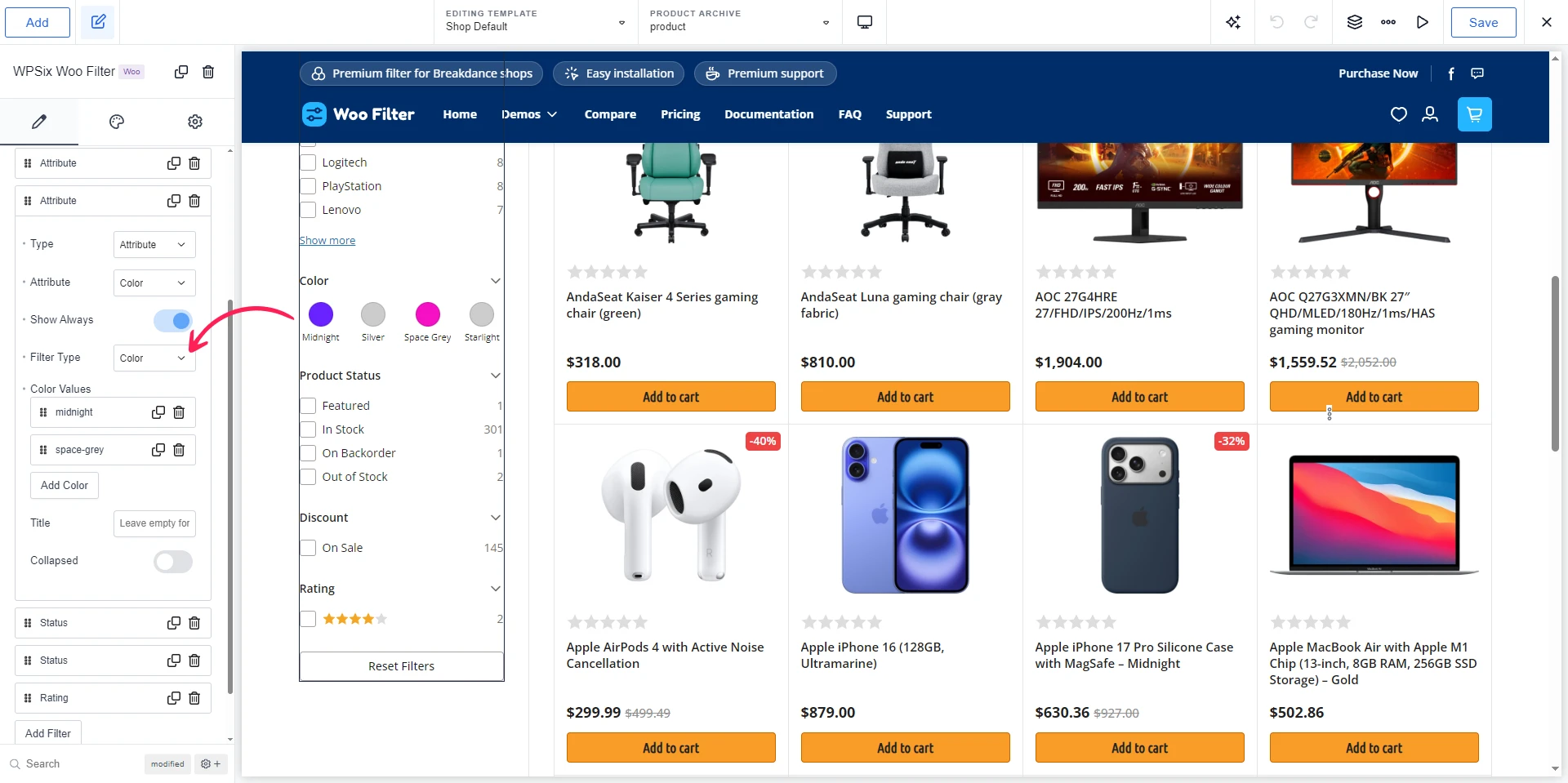
To add color swatches, select the attribute and set the filter type to “Color.” Then you can assign a unique color to each attribute based on its slug. For example, use space-grey for “Space Grey” and define its hex color value accordingly.
4. How to install demo theme
To use the template, simply go to Breakdance -> Templates in the admin panel and create a new shop archive product template or edit an existing one. Open the content of one of the .txt files, copy it, and paste it into the editor. That’s all.
5. Support & help
If you get stuck and need help, feel free to send an email to [email protected]. I do my best to respond to all messages within 24 hours. If you’ve discovered a bug, please report it to the same email address.
6. Leave review
If you like the plugin, please support my work by leaving a rating on the Gumroad page after logging in. Join our Facebook group for the latest news about WPSix products!
